Ready to Start Watching IPTV?
Start watching live TV, sports, movies and series with a PLATIN4K IPTV subscription. Choose the plan and number of connections that suit your needs.
 Skip to content

Looking for an easy way to install Smart IPTV on your Firestick? This step-by-step guide shows you how to set up Smart IPTV on your Amazon Fire TV and get your streaming setup ready. Once your device is configured, you can explore our IPTV plans to choose a subscription that fits your viewing needs.
Our team created this step by step guide for smart iptv installation on firestick to help you navigate the setup without needing advanced technical skills. We cover everything from preparing the device and using the Downloader app to final playlist configuration.
Learning how to install smart iptv on firestick allows you to manage your favorite channels with ease. We will walk you through the APK setup, activation steps, and basic troubleshooting tips to ensure a smooth streaming experience.
Preparing your hardware correctly ensures that you know how to install smart iptv on firestick without any technical hurdles. This smart iptv firestick installation tutorial provides the foundational knowledge required to manage your media effectively. Before you begin, it is essential to understand the specific role this application plays within your home entertainment ecosystem.
The application functions as a media interface designed to organize and display digital streams. It does not host or broadcast television channels itself. Instead, it acts as a bridge between your chosen streaming source and your television screen.
It is a common misconception that this app comes pre-loaded with channels. You must provide your own source of media, typically in the form of an M3U playlist or an EPG URL. Think of the app as a digital container that requires you to supply the content to make it functional.
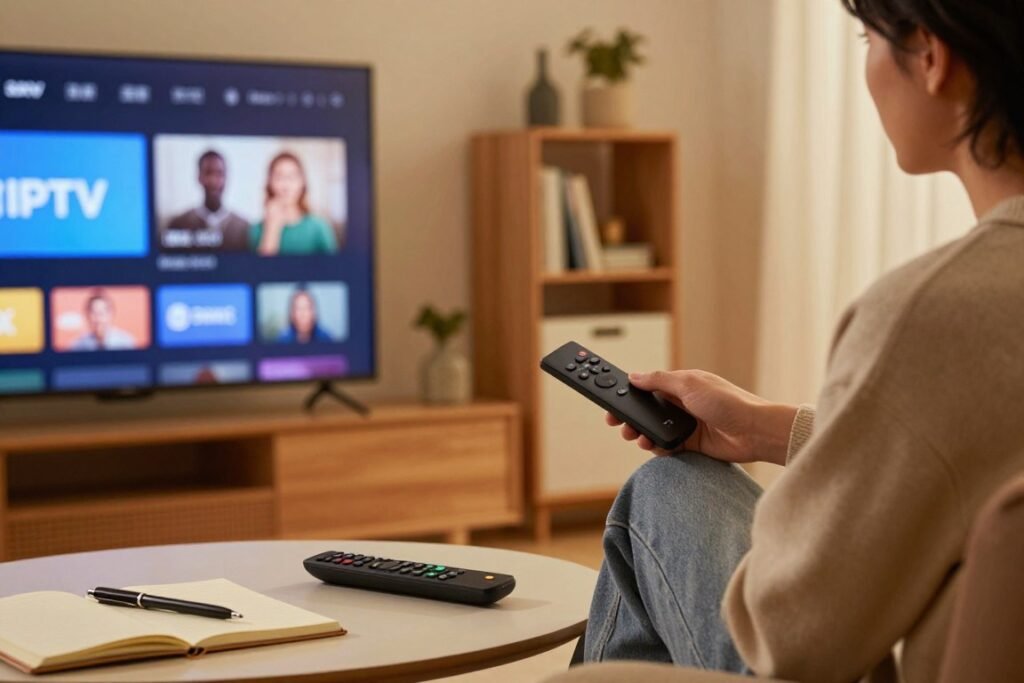
Always prioritize the use of legitimate and authorized streaming services. Accessing copyrighted material without proper licensing can lead to service interruptions or legal complications. By choosing reputable providers, you ensure a stable, high-quality viewing experience that respects content creators.
To ensure a smooth setup, gather all necessary components before starting the process. The following table outlines the essential items you need to have ready.
| Requirement | Description | Purpose |
|---|---|---|
| Hardware | Fire TV Stick & Remote | Primary playback device |
| Connectivity | Stable Wi-Fi | Ensures buffer-free streaming |
| Software | Downloader App | Facilitates sideloading |
| Credentials | IPTV Subscription | Provides the channel data |
Ensure your Fire TV device is fully updated and connected to a high-definition television. Having a functional remote is critical for navigating the interface during the setup process.
A consistent and high-speed internet connection is vital for streaming live television. We recommend a stable Wi-Fi signal or a wired Ethernet connection to prevent playback issues.
You will need the Downloader app to sideload the software onto your device. Additionally, have your valid IPTV service credentials, such as your M3U playlist URL, ready to input once the installation is complete.
Are you looking to enhance your home entertainment experience? Many users want to install Smart IPTV on their Firestick to access a wider range of global content. This process might seem complex, but it is quite straightforward when you follow the right instructions. Once your Firestick is ready, you can try an IPTV test to experience the service before choosing a longer subscription, or explore our IPTV plans if you’re ready to subscribe.
This step-by-step guide explains how to install Smart IPTV on your Firestick, from preparing your device and using the Downloader app to completing the installation and configuring your playlist.
To begin, navigate to the home screen of your Amazon Fire TV. Use your remote to scroll to the right and select the gear icon, which represents the Settings menu. This is the best method to install smart iptv on firestick safely and efficiently.
Once inside the Settings menu, locate the tile labeled “My Fire TV” or “Device & Software.” Select this option to view system-level configurations. Within this menu, you will find “Developer Options,” which allows you to manage third-party applications.
Inside the Developer Options menu, select Install Unknown Apps and enable the Downloader application. For more information about managing apps on Fire TV, see Amazon’s Fire TV support documentation.

If you do not have the Downloader app yet, return to the home screen and select the “Find” or “Search” icon. Type “Downloader” into the search bar and select the orange icon from the results. Click “Get” or “Download” to install it onto your device.
Launch the Downloader app and select the URL field. Carefully enter the official web address for the Smart IPTV application. This is the most critical part of the process to install smart iptv on your firestick correctly.
After the download finishes, the app will prompt you to install the file. Click “Install” to finalize the process. Once the installation is complete, you can select “Open” to launch the application for the first time.
During the installation, your Firestick may display a security prompt asking for permission to install apps from unknown sources. Confirm this request to proceed. This is a standard security measure for any application not downloaded directly from the official Amazon Appstore.
After the app is successfully installed, you no longer need the APK file. Select the “Delete” button within the Downloader app to remove the file. This simple action helps you reclaim valuable storage space on your Firestick.
| Step Number | Action Required | Purpose |
|---|---|---|
| 1 | Enable Unknown Apps | Allow sideloading |
| 2 | Download APK | Fetch installation file |
| 3 | Run Installer | Deploy the application |
| 4 | Delete APK | Optimize storage space |
Setting up your Firestick correctly is the first step to ensuring you know how to install smart iptv on firestick without any technical errors. Following this smart iptv firestick installation tutorial will help you avoid common pitfalls that often interrupt the process. A well-prepared device ensures that your software downloads and streaming sessions remain consistent.
A reliable internet connection is essential for downloading the necessary APK files. If your signal is weak, the installation may fail or result in corrupted files. Ensure your device is connected to a stable 5GHz network for the best performance.
Outdated system software can cause compatibility issues with new applications. Navigate to your device settings to check for any available system updates. Installing these patches keeps your Firestick secure and ready for new software.
The Firestick requires sufficient internal storage to download and unpack application files. If your device is nearly full, you may encounter errors during the installation phase. Check your storage capacity in the settings menu to ensure you have enough room for the app.
Incorrect time settings can prevent your device from connecting to secure servers. Verify that your time zone and region are set to match your current location. This simple step prevents authentication errors when you launch the application for the first time.
Background applications consume valuable system memory and processing power. Closing these programs before you start the installation process will help your Firestick run faster. This creates a clean environment for the new software to function correctly.
| Preparation Task | Why It Matters | Recommended Action |
|---|---|---|
| Network Stability | Prevents download errors | Use 5GHz Wi-Fi |
| System Updates | Ensures compatibility | Check in Settings |
| Storage Check | Prevents installation failure | Clear cache or delete apps |
| Time Sync | Fixes server connection | Set to Automatic |
Configuring your system permissions is a vital part of the best method to install smart iptv on firestick. By default, Amazon restricts the installation of applications from outside the official Appstore to protect your device. You must manually adjust these settings to proceed with your setup.
Navigate to the “Settings” gear icon on your Fire TV home screen. Select “My Fire TV” or “Device & Software” to locate the system menu. This is where you will find the necessary tools to modify your device’s security profile.
Once inside the menu, select “Developer Options.” Look for the “Install Unknown Apps” setting and click it to see a list of your installed applications. Find the “Downloader” app in this list and toggle the switch to “ON” to grant it the required permissions.
If you do not see “Developer Options” listed, you may need to reveal it manually. Go to “Settings,” select “My Fire TV,” and click on “About.” Highlight the “Fire TV” name and click the center button on your remote seven times until a notification appears stating that you are now a developer.
Security is paramount when you choose to install third-party software. Always remain vigilant to ensure your streaming environment stays safe and stable.
“Security is not a product, but a process that requires constant attention and the right tools to keep your digital life protected.”
Only use official websites or verified repositories to obtain your installation files. Using the best method to install smart iptv on firestick involves sourcing your APKs from reputable locations to avoid potential malware or corrupted data.
Be wary of websites that trigger aggressive pop-ups or redirect you to unknown download servers. If a site feels suspicious, close your browser immediately and search for a more reliable source to maintain the integrity of your Firestick.
Now that your device is prepared, you can proceed to download and install the Smart IPTV APK. This step by step guide for smart iptv installation on firestick ensures that you handle the file transfer correctly and safely.
Navigate to your apps library on the Fire TV home screen. Locate and select the Downloader application to begin the process.
Once the app is open, click on the URL input field. Carefully type the official download link for the Smart IPTV application and select the Go button to initiate the connection.
The application will now begin fetching the file from the server. Please remain patient while the progress bar completes, as interrupting this connection may result in a corrupted file.
After the download finishes, a prompt will appear on your screen. Select the Install button to finalize the setup on your device.
Once the installation is complete, you will see a confirmation message. You can choose to open the app immediately or select Done to return to the downloader interface.
“Efficiency is doing things right; effectiveness is doing the right things.”
When you first launch the application, it may request access to your device storage or network settings. It is best practice to grant only the permissions that are strictly required for the app to function properly.
To install smart iptv on your firestick effectively, you should manage your storage space wisely. Once the installation is finished, select the Delete button within the Downloader app to remove the installer file, as it is no longer needed.
Activating your software is the final step in this smart iptv firestick installation tutorial. Completing this process ensures that your media player is fully licensed and ready to stream your favorite content without interruptions.
Launch the application on your television to view the main interface. You will typically see a unique MAC address displayed prominently on the screen.
Write this alphanumeric code down carefully. You will need this exact sequence to register your device on the official portal.
Use a web browser on your smartphone or laptop to navigate to the official activation website. Ensure you are using the correct, secure URL provided by the developer.
Locate the input field on the website designed for device registration. Carefully type your MAC address into the box, ensuring there are no typos or missing characters.
Follow the on-screen prompts to finalize the registration fee if applicable. Most services require a one-time payment to unlock the full features of the application permanently.
Once the payment is confirmed, return to your television. Close the application completely and relaunch it to refresh the connection with the server.
After restarting, the main screen should no longer display a trial warning or an activation prompt. If the interface loads your playlist immediately, the activation was successful.
Keep in mind that this license is tied specifically to your hardware. This means the activation is not transferable to other devices, as it is linked to the unique MAC address of your current Firestick.
To fully utilize the software, you need to import your personalized streaming data. Since the application acts strictly as a media player, it does not come pre-loaded with content. You must provide your own source to install smart iptv on your firestick effectively.
Your first step involves securing a valid M3U link or file from your chosen service provider. This file acts as the digital map for your channels and categories. Ensure you have this link ready before you attempt to configure the application.
Navigate to the official activation website on your computer or mobile device. You will see a specific field designated for your playlist URL. Carefully paste your link into this box to ensure the system recognizes your stream source.
The application identifies your specific device using a unique MAC address. You must enter this code into the designated area on the website to link your account. This process ensures that your playlist is pushed directly to your television screen.
After entering your details, click the save button to finalize the configuration. Once saved, return to your television and restart the application. You may need to press the refresh button on your remote to force the app to pull the new data.
If you want to see a schedule of your shows, you should also add an EPG URL. This link provides the metadata required to populate your program guide. Without this, your channel list will lack descriptive information and timing details.
It is important to verify that your playlist remains active and compatible with the player. Consider these factors to maintain a smooth experience:
Once you have successfully set up your channels, fine-tuning the application settings ensures a smoother performance. Many users find that the default configuration does not always match their specific network environment or hardware capabilities. Taking a few minutes to adjust these preferences can drastically improve your daily media consumption after you install Smart IPTV on your Firestick.
Managing a large list of channels can be overwhelming if they are not sorted correctly. You can use the remote to group your favorite programs into a dedicated folder for quick access. This reduces the time spent scrolling through hundreds of options during your leisure time.
The video settings menu allows you to select the appropriate stream format for your display. If you notice stuttering, try switching the hardware decoding mode to match your device’s capabilities. Choosing the right playback engine often resolves minor synchronization issues between audio and video.
If your stream frequently pauses, you should modify the buffering time in the settings menu. Increasing the buffer size allows the app to download more data ahead of time, which helps maintain a steady stream. This is particularly helpful if your internet connection experiences occasional speed fluctuations.
Smart IPTV provides flexible controls for managing secondary audio tracks and subtitles. You can toggle these features on or off directly from the playback interface while watching a show. This ensures that your viewing experience remains comfortable and accessible at all times.
While Wi-Fi is convenient, a wired Ethernet connection provides the most stable data transfer for high-definition content. Using an Ethernet adapter for your device minimizes interference from other household electronics. This simple hardware upgrade is often the most effective way to optimize the performance of the app after you install Smart IPTV on your Firestick.
| Feature | Benefit | Impact on Streaming |
|---|---|---|
| Wired Ethernet | High Stability | Reduces buffering significantly |
| Hardware Decoding | Better Efficiency | Improves playback smoothness |
| Buffer Adjustment | Data Pre-loading | Prevents sudden freezing |
| Channel Sorting | User Experience | Faster navigation time |
Troubleshooting your streaming setup is a vital part of the best method to install smart iptv on firestick. By proactively checking your configuration, you can avoid frustration during your favorite programs.
Do not assume that one working channel represents the quality of your entire service. You should test a variety of live streams across different categories to ensure your playlist is fully functional.
“Quality is never an accident; it is always the result of high intention, sincere effort, intelligent direction and skillful execution.”
If you encounter a blank screen, the stream might be temporarily unavailable or blocked. Try switching to a different channel to see if the issue persists across the entire service. If the error remains, check your internet connection to ensure your device is receiving data.
Buffering often stems from network congestion or low bandwidth. You can improve performance by closing background apps on your Firestick or moving closer to your router. If the video quality remains poor, consider lowering the stream resolution if your player settings allow it.
Sometimes, a playlist may fail to load correctly, resulting in an empty interface. Use the refresh option within the app settings to force a re-sync with your provider’s server. This simple action often resolves synchronization delays.
A simple restart can clear temporary cache files that cause playback glitches. Power cycle your Firestick by unplugging it for thirty seconds before plugging it back in. This is often the best method to install smart iptv on firestick stability when minor bugs occur.
| Issue | Quick Fix | Priority |
|---|---|---|
| Buffering | Check Wi-Fi | High |
| Blank Screen | Switch Channel | Medium |
| Empty List | Refresh App | High |
If you have verified your local network and the app is still failing, the issue likely originates from the provider. Server outages or maintenance can cause widespread playback errors. Check the provider’s official status page or support channels for updates.
Reinstalling the application should be your last resort. Only perform this step if you have exhausted all other troubleshooting options and the app continues to crash or fail. Ensure you have your playlist URL saved before deleting the app to avoid losing your configuration.
Maintaining the security of your streaming setup is just as important as the initial installation. While following a smart iptv firestick installation tutorial helps you get started, long-term safety requires ongoing vigilance. You should treat your streaming device like any other computer on your network.
Always obtain updates directly from official developer websites or verified repositories. Avoid clicking on random pop-ups or suspicious links that claim to offer the latest version of your software. Using unverified sources can expose your device to malicious code or unwanted tracking scripts.
Digital clutter can slow down your device and create unnecessary security vulnerabilities. Periodically review your installed apps and uninstall anything you no longer use. This practice keeps your system lean and reduces the surface area for potential security threats.
Your playlist URLs and account login details are sensitive pieces of information. Never share these credentials on public forums or with unauthorized third parties. If you suspect your account information has been compromised, change your passwords immediately to prevent unauthorized access.
“Security is not a product, but a process. By staying informed and proactive, you ensure that your home entertainment remains both enjoyable and private.”
Your streaming experience is only as secure as your home network. Ensure your router uses WPA3 or WPA2 encryption to prevent unauthorized users from accessing your traffic. Regularly update your router firmware to patch known security gaps that could affect your connected devices.
Before you continue streaming, take a moment to verify the status of your service provider. It is essential to ensure that the content you access is authorized and respects copyright laws. Following a smart iptv firestick installation tutorial is only the first step; responsible usage is what keeps your digital environment safe and compliant.
When you decide to install smart iptv on your firestick, you take on the responsibility of managing your streaming environment. Maintaining a secure and efficient setup ensures that your device remains protected while you enjoy your favorite media. By following best practices, you can create a reliable home entertainment system that serves your needs without compromising your digital safety.
The foundation of a positive experience begins with selecting a trustworthy service provider. Look for companies that offer transparent service terms and consistent uptime. A reputable provider will prioritize the security of your data and provide clear communication regarding their service offerings.
Always verify that the content you access is properly licensed and authorized for distribution. Using legitimate services protects you from potential service interruptions and ensures you are supporting content creators. Checking the status of your streams is a simple step that adds significant value to your long-term viewing experience.
It is important to distinguish between the application itself and your content provider. Smart IPTV acts as a media player, while your provider delivers the actual channel lists. If you encounter issues with your stream, contact your provider for support, as they manage the playlist and server connectivity.
After you install smart iptv on your firestick, you should review your device permissions regularly. Disable the “Install Unknown Apps” setting in the Downloader app when you are not actively adding new software. Keeping these settings restricted prevents unauthorized changes to your system and maintains a higher level of security.
High-definition streaming can consume a significant amount of bandwidth over time. Monitor your monthly data usage to ensure you stay within the limits set by your internet service provider. Being mindful of your consumption helps you avoid unexpected overage charges and keeps your home network running smoothly.
Setting up your media center requires careful attention to detail and a focus on security. You now possess the knowledge to install smart iptv on your firestick by preparing your device and configuring the necessary downloader permissions. This process ensures your hardware remains optimized for high-quality playback.
Following this step by step guide for smart iptv installation on firestick allows you to manage your content effectively. You must activate the application using your unique device MAC address and link a valid M3U playlist from a reputable provider. Proper activation remains the most critical phase for unlocking the full potential of your interface.
Learning how to install smart iptv on firestick is only the beginning of your journey. You should prioritize regular software updates and maintain a secure network environment to protect your personal data. Always verify the legal rights of your streaming content to ensure a safe experience.
Monitor your internet data usage to avoid unexpected service interruptions during peak viewing hours. If you encounter playback issues, utilize the troubleshooting techniques provided to restore your connection quickly. Your commitment to responsible streaming practices keeps your Amazon Fire TV setup running smoothly for years to come.
